Connect to Activity Tracking
Last updated: Aug 24, 2026
HOW TO CONNECT TO ACTIVITY TRACKING?
1. Open the App Menu:
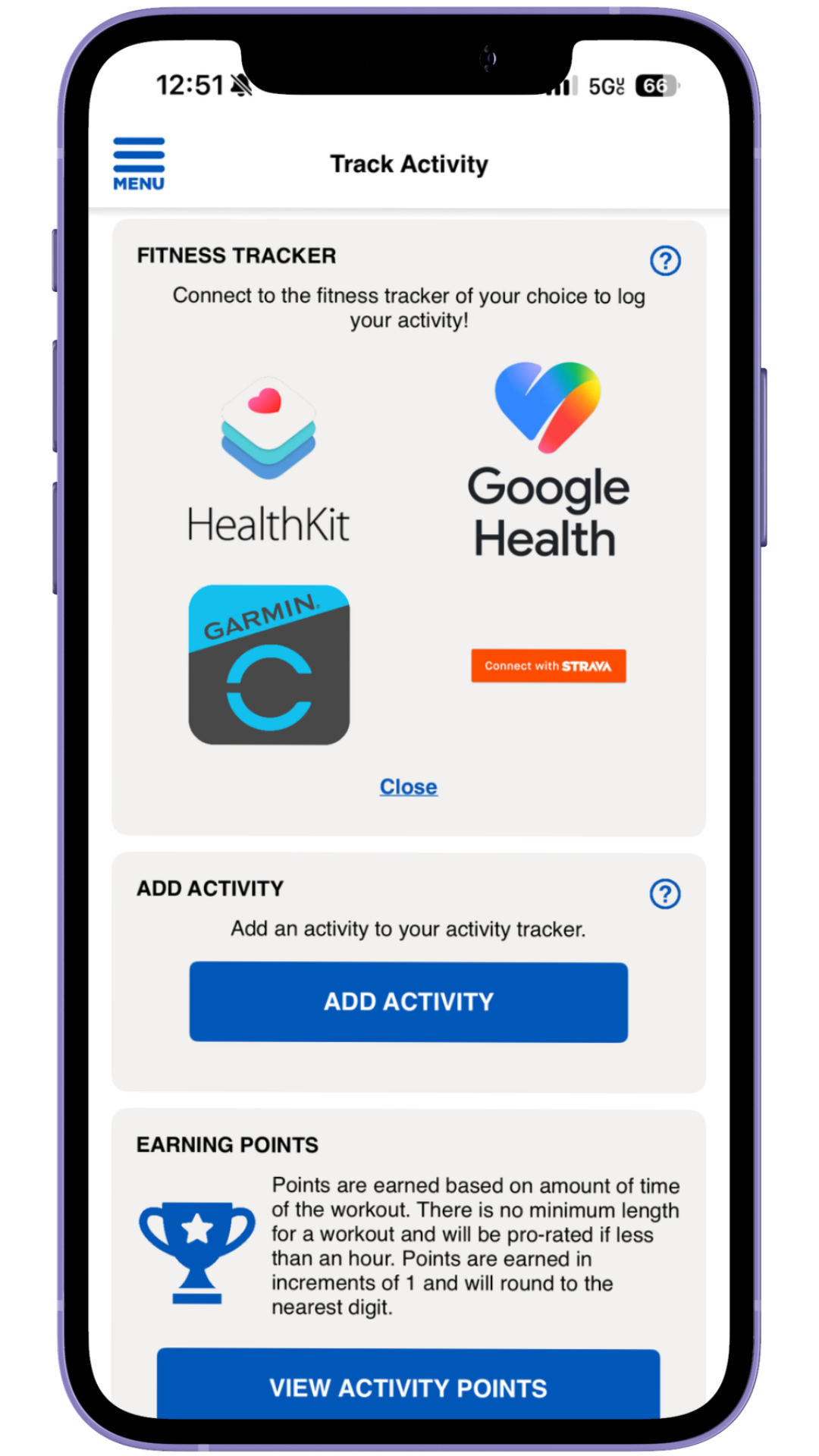
- Tap on the menu icon and select Track Activity
2. Choose a Tracking Option:
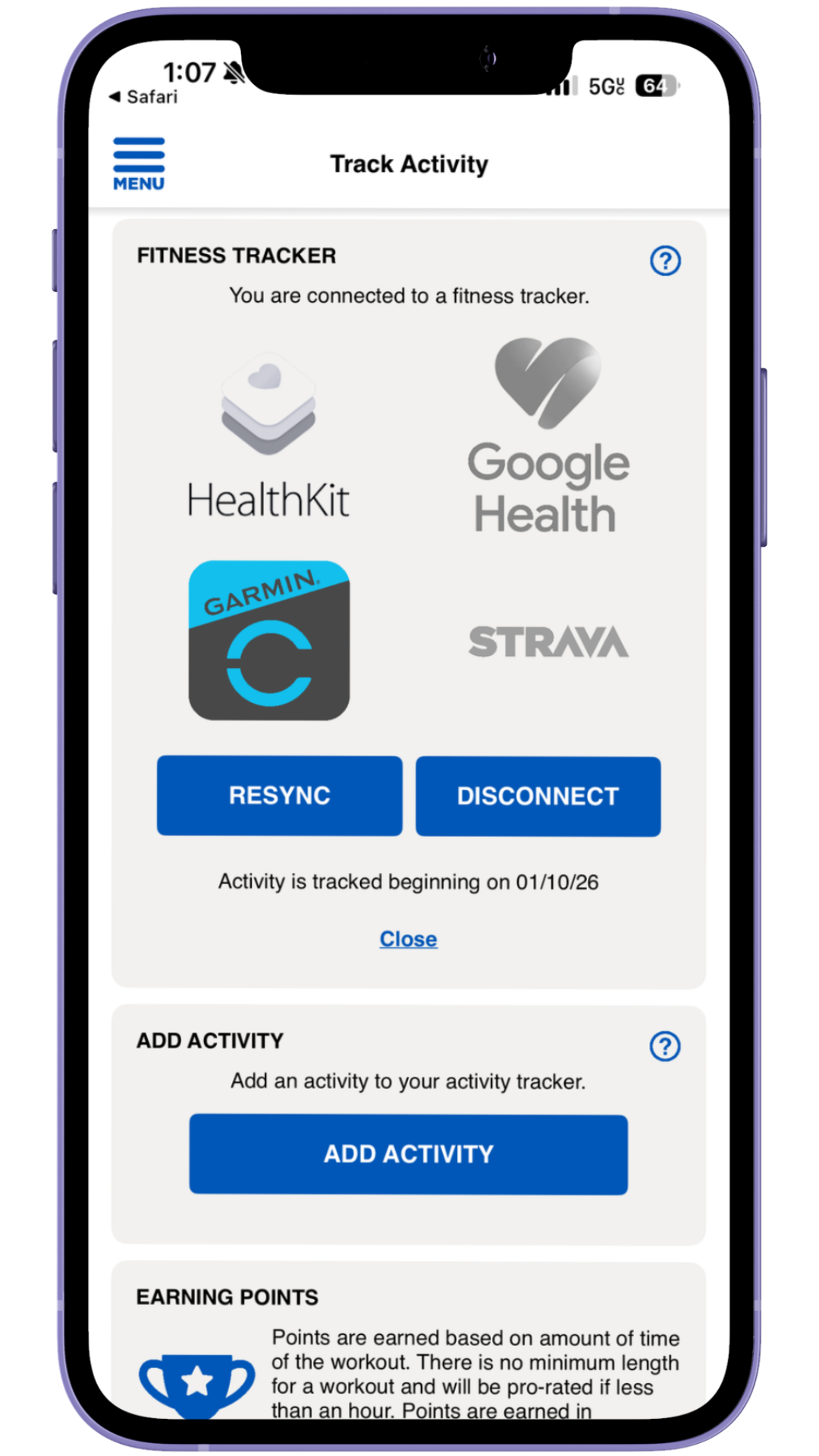
- You will see the option to connect to Apple HealthKit, Google Health, Garmin, Fitbit, or STRAVA. Note Apple Health will only appear for iPhone devices and Android Health Connect will only appear for Android devices.
3. Connecting to Apple HealthKit:
- If you select Apple HealthKit, ensure that all permission settings are turned on in your device settings to allow tracking.
4. Connecting to Google Health:
- If you select Google Health, you'll need to grant the app permission to access your Google Account, including Fitbit speed and distance data, as well as your physical activity information. After granting access, scroll to the bottom of the page and click the "Continue" button.
5. Connecting to STRAVA
- If you select STRAVA, you will be redirected to a web page where you'll be prompted to authorize our app to connect to Strava. Grant the necessary permissions and click the "Authorize" button.
6. Connecting to Garmin
- If you select Garmin, you will be redirected to a web page where you'll be prompted to authorize our app to connect to Garmin. Grant the necessary permissions and click the "Authorize" button.